
Much of the video work we do at LovelyPixels is for a clients’ online audience. They are either embedding it on their campaign landing pages, running multi-channel ad placements or simply doing some form of educational piece to help them engage with more prospects. And odds are, if you’re reading this – it’s because we’ve just wrapped up a fun videography shoot with you and we want to make sure you have some insight on how to really maximize the visibility of your new piece of content!
The next few tips and tricks are going to help you SEO your videos on whichever platform you’re hosting with (YouTube, Vimeo, Rumble, etc). What are the benefits of doing these couple of housekeeping tasks? Increased watch time, broader brand awareness and more leads to name just a few! Ready?
“Search engines that tap into YouTube and Vimeo use the same fundamental algorithms as websites and want to provide users with the best experience possible when looking for content. So let’s help ensure your digital content is putting its best foot forward!”
Step 1. Pick Your Keywords (Wisely)
SERPs get more and more competitive every month. Think of all the new products, services, businesses, competitors and content that everyone is creating and publishing to fight their way to the top of the search listings.
Find ways to diversify yourself and your reach by doing some keyword research and choosing terms that get you volume but don’t have high competition.
You can use the same keyword research tools you’d use for PPC or SEO, like
• Use our Keyword Research & Mapping Recipe to guide you
• WordStream’s Free Keyword Tool
• Google Keyword Planner.
• Moz or Semrush.
• Google search—search suggest, people also ask, related searches, and more!
Step 2: Use Keywords in Your Video Titles
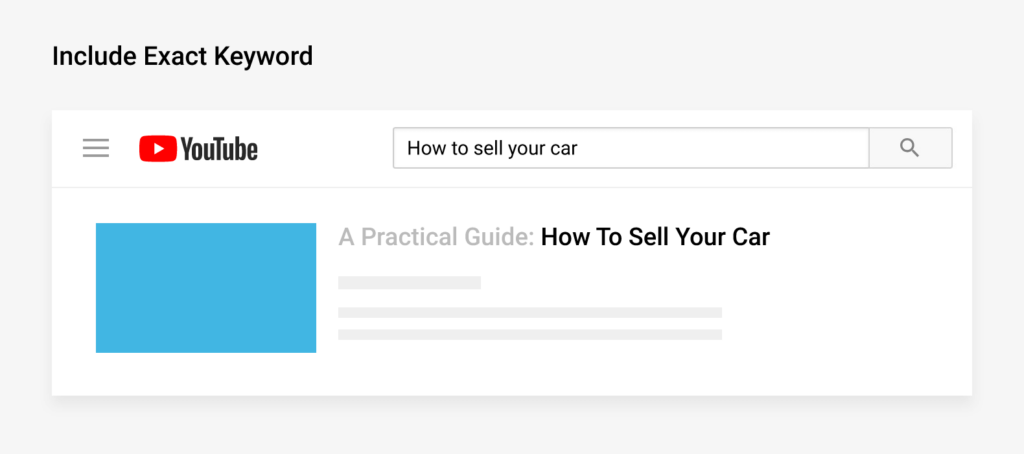
To get your video visible in search results, we need to hone in and focus on understanding the serach intent of your audience. Are they solving a problem? Specifically searching for more information on your service or brand? Are we trying to promote a product, educate or engage?
In addition to that, we want to understand WHY you want to make your video and who your primary audience is. This will help us back track and find out what kinds of search quieres (using our keywords) will lead people to your content.
So for example, lets say you’re posting a product review video of a new skincare product. You’re going to want to make sure that the product name is in the video title and description (it sounds really simple – but you’d be surprised at how many people miss this step and find themselves low on the totem pole of Google and YouTube search results).
Step 3: Make Sure the Keyword is in Your Video File Name
Before you upload your video file to YouTube, Vimeo or another platform – make sure the video name isn’t something random like “WVUMedV5-220318-FinalFINAL.mp4”
Step 4: Optimize the Video Description
Arguably one of the most important ranking factors for video SEO is making sure your description is on point! We recommend that you have your most important keywords in the first couple of sentences of the description – and keep the description to 200 words or less.
And most importantly – make sure your description is helpful to the user, or delete it all together.
Youtube has some great resources on the Youtube Creator Studio which is a resource that is always updated with current information. It has a handy list that guides you through the steps to a successful video description:
Include an overview of your video using natural language—not just a stream of keywords.
Insert the most important keywords at the beginning of your description.
Pick 1–2 main words that describe your video and feature them prominently in both your description and title.
Use keyword tools such as Google Trends and the Google Ads Keyword Planner to identify popular keywords and their synonyms. Including these terms can help you to maximize traffic from search.
Omit irrelevant words in your description because it creates a poor viewing experience and may violate Google’s policies.
Step 5: Use Video Hashtags
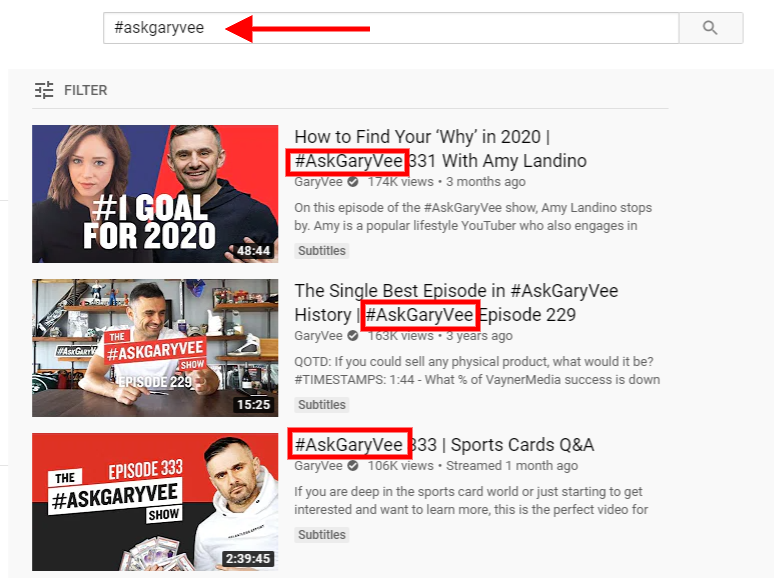
#Hashtags are used across the internet now to filter and search for specific types of content, and that includes videos! You can add relevant hashtags to video descriptions and titles to help viewers find your content.
These little trendy tidbits help drive search and make trends more visible.
Step 6: Pick a Category
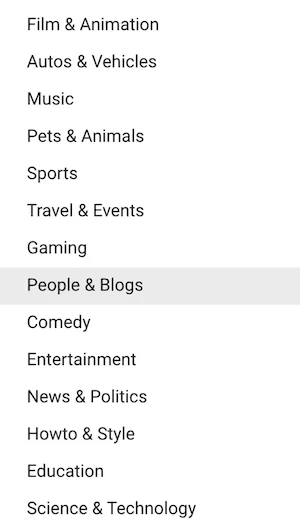
Most of the prominent video social networks allow people to pair down results with advanced filters and categories. When uploading your video, makes sure to contextualize the content of your video by appropriately selecting a category.
Step 7: Set a Custom Thumbnail
Just like we judge a wine by their label design, you’re going to want to make sure that the thumbnail your pick is putting your best foot forward and grabs peopels attention when they are scrolling through the results feed!
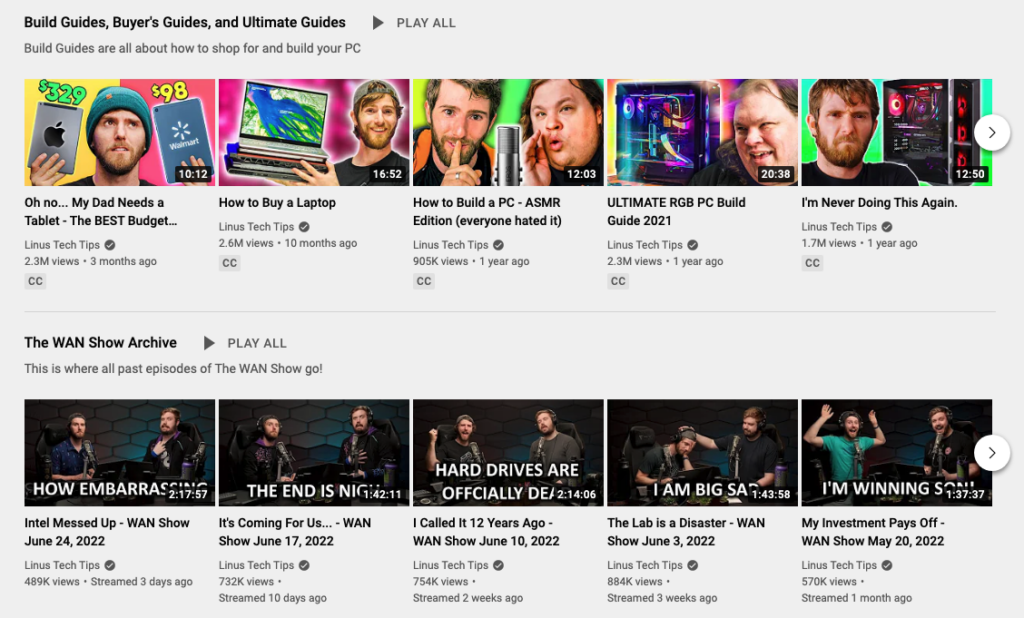
If you have a channel with multiple types of content libraries, we’d suggest making some unique cover images so that people can differentiate between topics, content and styles you’re trying to seperate videos by.
So for example, lets say you’re a tech consultant and you host a weekly podcast that talks about trening news, and then you also have videos that are one-on-one quick tips to help guide people. You can easily and visually show users browsing your content which videos are the podcast conversations and which ones are tips and tricks by having clearly designed, unique covers.
Step 8: Setup Subtitle and Closed Captions
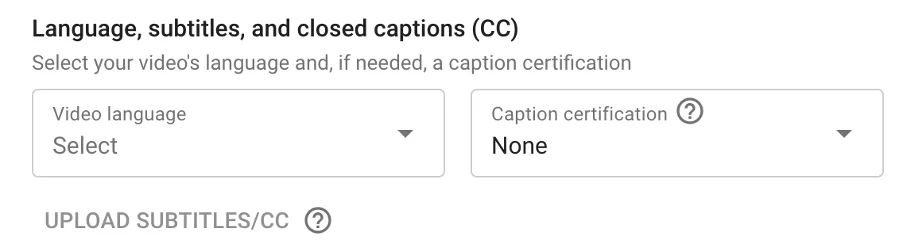
In the world of keyword optimization, leveraging subtitles and closed captions to amplify the copy you’re giving to Google and other search engines with a transcript in invaluable! Creating these closed-caption files with time codes for when each bit of text should be displayed allows you to be picked up by broad search engines as well as makes sure you’re able to communicate with people who are visually or hearing impaired.
See what file formats YouTube supports here.
On the video upload screen, you can select your file and video language. And if you get a little lost on this step, no worries. There are a lot of really good guides out there for how to create an SRT file for your video. Here is one we use pretty often!

